
A calm YouTube client for all ages — no music, no trending.

Built for anyone who wants to cut out music and the frenzied trending features of YouTube — whether for yourself or a child's device. Watch only your Allowed Channels, strip background music in realtime as it plays, and optionally lock Settings behind a Parent PIN and Screen Pin. No ads, no Google account, and zero tracking.

Version
v1.1.0
Size
155.3 MB
Released
Requires
Android 8.0+ (API 26)
Package
dev.twenty3p.tubik
APK SHA-256 verification checksum fe976f4c53f03255369599a75d9512c837b9ce12b925d97211e44bc1aefb8890
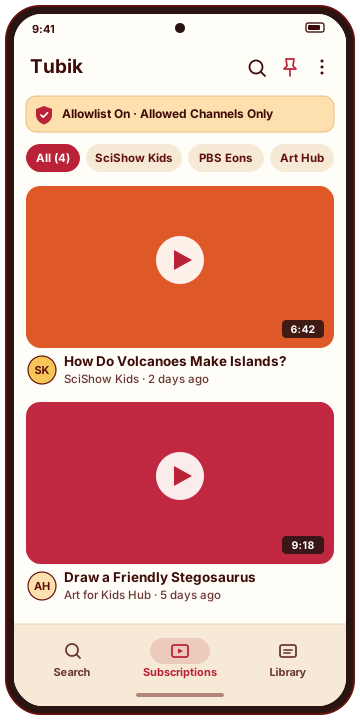
Tubik Subscriptions screen showing Allowed Channels only and no Trending tab

Built around intentional controls, not algorithmic feeds

Tubik removes the trending tab and home feed completely. Every surface respects the switches you configure in Settings.

Allowlist & no trending

Subscriptions are the single source of truth for Allowed Channels.

The bottom navigation bar keeps only Search, Subscriptions, and Library. Trending is gone whether the Allowlist is on or off.

  • While Allowlist is on, feeds, search, playlists, history, downloads, Shorts, and live streams show only Allowed Channels.
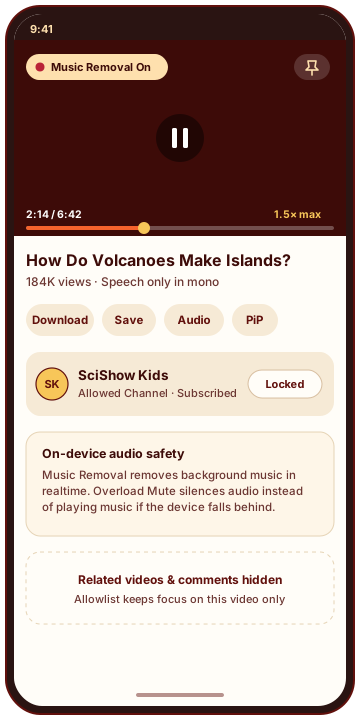
  • Related videos and comments stay hidden during playback.
  • Playback from any other channel is refused, and subscribe or unsubscribe actions stay unavailable until the Allowlist is turned off (and protected by a Parent PIN if one is set).
Music Removal & Overload Mute

Real-time speech-only Music Removal that fails closed instead of leaking music.

Music Removal starts on and strips music in realtime across the player, background audio, picture-in-picture, and downloads, keeping speech in mono.

  • Overload Mute silences playback audio whenever the speech model cannot load or the device falls behind realtime throughput, rather than playing unprocessed audio.
  • Supports Channel Opt-Out per channel while the global Music Removal switch stays on.
  • Caps effective playback speed at 1.5× while Music Removal is active, preserving your Preferred Speed across channels.

Parent PIN & Screen Pin

Keep Settings locked and pin the device to Tubik in one tap.

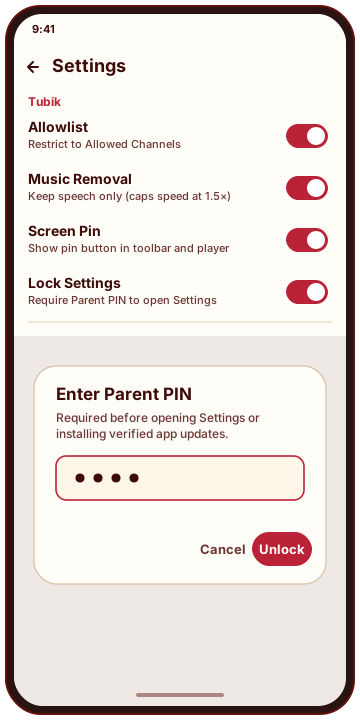
Set a Parent PIN (stored only as a salted hash on the device) and turn on Lock Settings so opening Settings or updating the app requires the PIN.

  • When a Parent PIN is set, Tubik also requests it before changing subscriptions, Channel Opt-Out, or restoring backups.
  • Screen Pin places a one-touch pin button in the toolbar and player controls using Android's system screen pinning.

Private, no-account playback

Plays YouTube without ads, Google login, or usage analytics.

Subscriptions, playlists, watch history, downloads, and crash logs stay strictly on the device, with local backup and import/export support.

  • Includes SponsorBlock, Return YouTube Dislike, optional DeArrow, and offline downloads.
  • Installs cleanly alongside other YouTube apps as dev.twenty3p.tubik.

Inside Tubik

Clean Material 3 screens built from LibreTube's foundation and shaped for calm, focused watching.

Tubik Subscriptions tab with Allowlist active and only Allowed Channels listed
Allowed Channels only Search, Subscriptions, and Library — Trending is removed.
Tubik video player with Music Removal active, Screen Pin control, and hidden related videos
Focused player with Music Removal Real-time speech-only Music Removal with Overload Mute and hidden recommendations.
Tubik Settings protected by a Parent PIN prompt
Parent PIN protection Lock Settings, Allowlist, Music Removal, and Screen Pin behind your PIN.

How to install Tubik on Android

Tubik is distributed directly as a signed APK and will never be published on Google Play. Follow these steps on your Android device.

  1. Download the signed APK

    Tap Download Tubik at the top of this page to save tubik-v1.1.0.apk from tubik-releases.23p.dev (or grab the identical file from GitHub Releases).

  2. Allow "Install unknown apps"

    Open the downloaded APK from your browser's Downloads or the Files app. Android will ask permission to install from that app: tap Settings, turn on Allow from this source, go back, and tap Install.

    After installation finishes, you can turn that permission back off in Android Settings → Apps → Special app access → Install unknown apps.

  3. Confirm Google Play Protect if prompted

    Because Tubik is sideloaded outside the Play Store, Google Play Protect may show a one-time prompt ("Unknown developer" or "App isn't recognized"). Tap More details → Install anyway.

  4. Verify the SHA-256 checksum (optional)

    If you downloaded the APK on a computer first, verify its SHA-256 digest matches the checksum above before copying it to the device:

    sha256sum tubik-v1.1.0.apk
  5. Configure your controls and stay updated safely

    Open Tubik, subscribe to your Allowed Channels, and open Settings to turn on the Allowlist or optionally set a Parent PIN and enable Lock Settings. Tubik checks https://tubik.23p.dev/updates/latest.json for updates, verifies SHA-256 and the app's signing certificate, and keeps updates gated behind Settings and Screen Pin protections.